Physical AI lessons,
ready in 5 minutes
(the robot opens its eyes and wakes up)
RBLOC is a free learning app: write scenarios for a robot and try them on its 3D digital twin.
(nodding)
Make it with the on-screen robot first. Plug in a Reachy Mini and the two move together.
Free. No account. No robot needed. Voice data (about 380MB) downloads once on first launch.
Windows If a blue window titled “Windows protected your PC” appears, click “More info” → “Run anyway”. Windows shows this once for newly released apps, the first time you install. Install
How it works
- DownloadGet the one for your computer with the buttons above.
- InstallOpen the file and you’re done. No account to create.
- Pick a scriptChoose one of the built-in samples and press “Play”.
- The robot performsThe robot on screen talks and moves. Connect a robot and it moves along.
(lifts its head and looks straight at you)
AI is stepping out of the screen
Until now AI lived inside a screen and answered in text. Now it is getting a body. It carries plates in restaurants, guides visitors through exhibitions and moves around the home. AI that acts in the same space as people is called physical AI.
Children in primary school today will work and live in a world where robots are simply around.
With on-screen AI you only decide what it says. With AI that has a body there is far more to decide. When to speak, where to look, how loud, how fast to move. How to behave so that people nearby feel at ease.
That is not a question of coding syntax. It is about ordering steps, paying attention to the other person, trying it and fixing it. So it is worth starting early, simply, and hands-on.
RBLOC makes that first experience possible without coding, without a robot, in five minutes.
Why RBLOC
If a tool is hard to learn, teachers and children put it down. So from the start we kept only what is easy.
A first piece in five minutes
Pick a sample, press Play and the robot performs. Change a spoken line to your own words and you are done. No coding experience needed.
No robot required
The on-screen 3D robot performs exactly the same way. Even with one robot per class, every child builds on their own screen and uses the real robot only to present.
Screen and robot, together
Plug in the robot and the on-screen one follows its actual pose. Children see what a digital twin is with their own eyes.
Free, no account
No payment, no sign-up, no keys. The robot’s voice is generated on your computer, so after the first download it works offline.
Nothing collected about children
No names, no accounts, no device IDs. Scripts and videos stay on that computer. Schools can use it without worry.
Built from the field
Made by a team that actually runs guide robots at exhibitions and events. It carries what we learned about what makes a robot welcome in front of people.
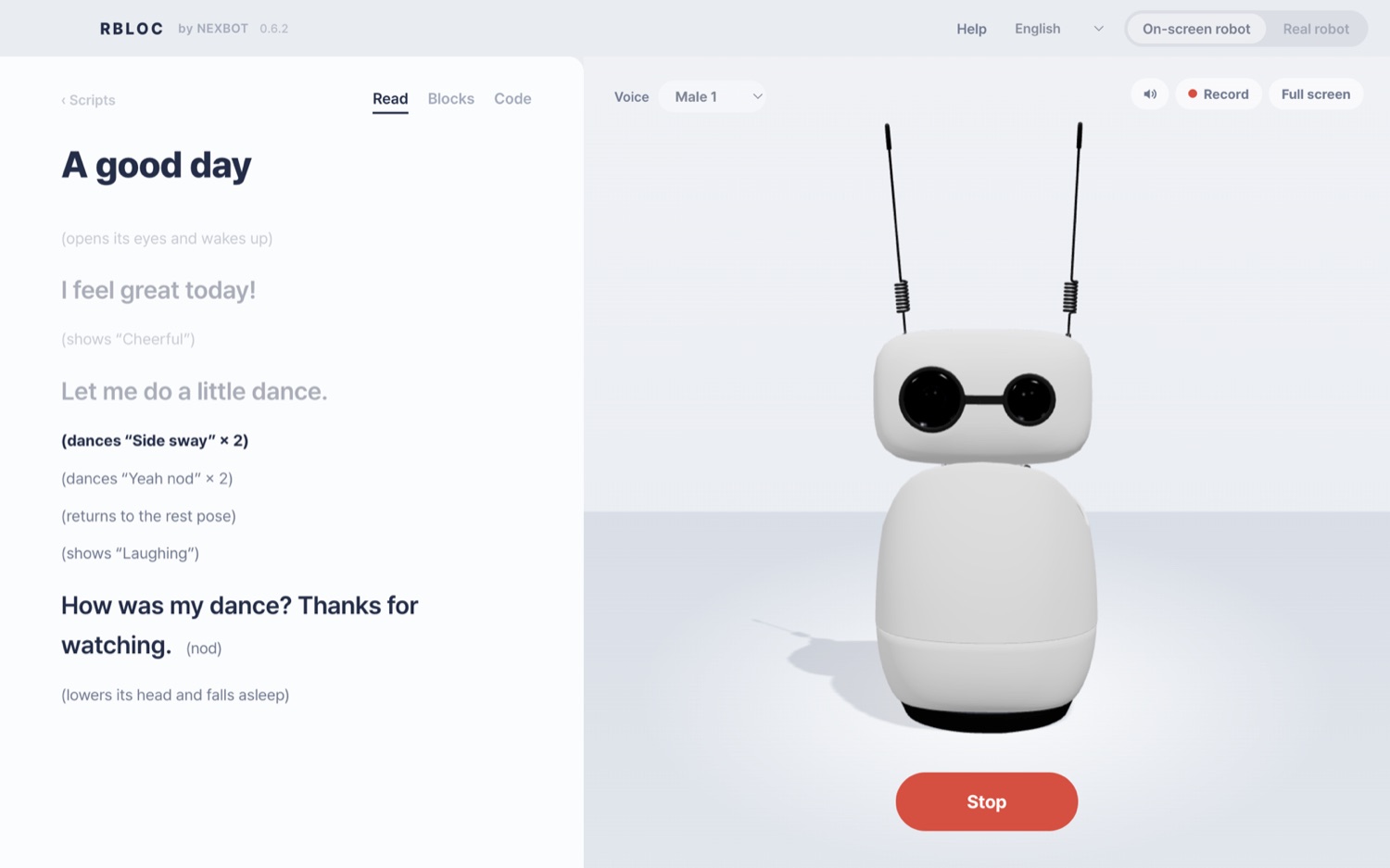
(shows “Cheerful”)
It talks, emotes and dances
Pick a sample and press Play. Greetings, a birthday song, a quiz and three fairy tales come built in. Click a spoken line, change it to your own words, and you have made your first piece.
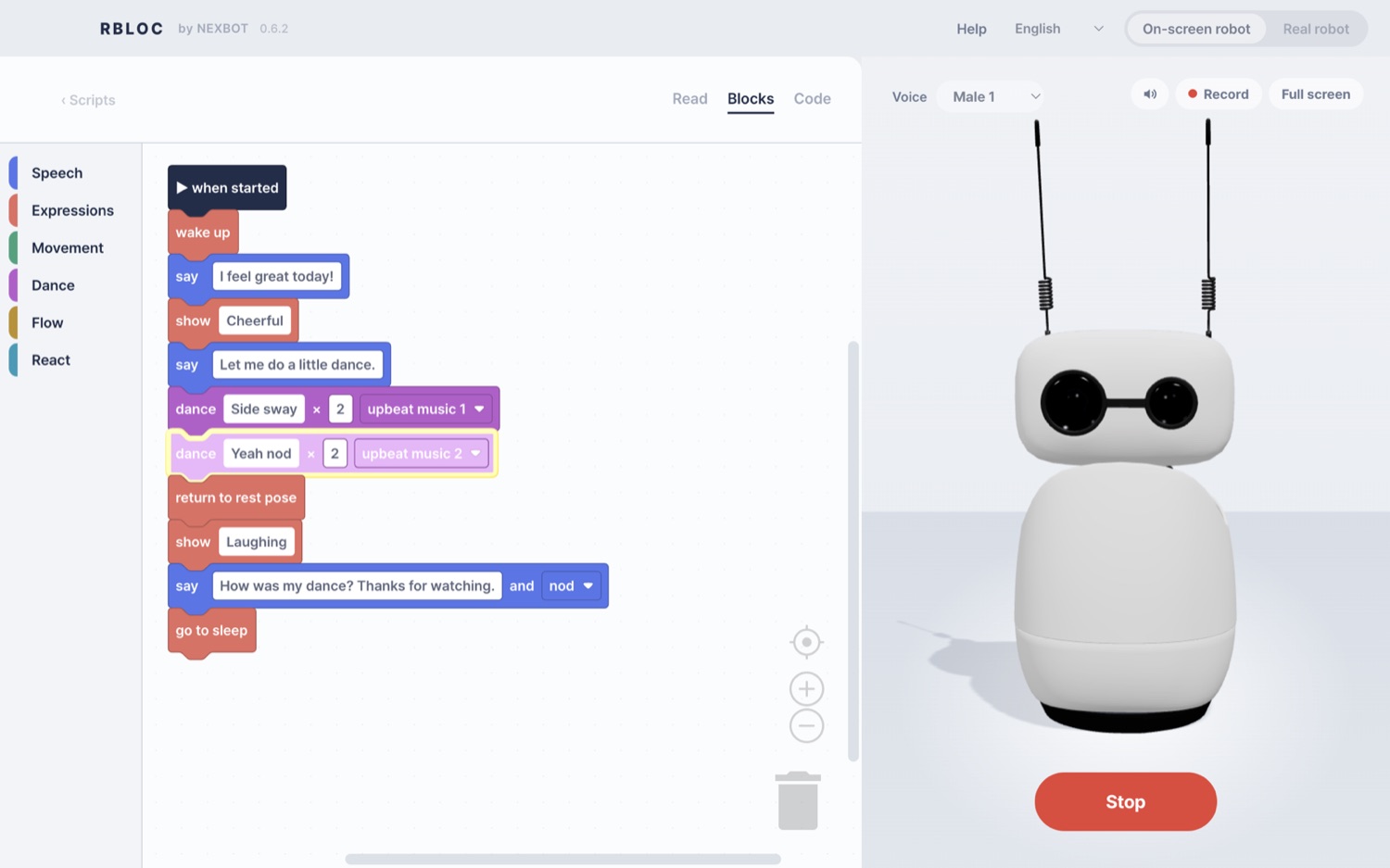
(snaps in one more block)
Change it with blocks
Speech, 80-odd expressions, 20 dances, loops, on-screen buttons. Blocks become the script as you snap them in, and clicking a line takes you to its block. No coding experience needed.
Six activities to try in class
RBLOC is less a tool for teaching code than a tool for children to write a script for a robot. They write, put things in order, pick expressions, run it and fix it. Each activity fits in one period with no prep.
Our class greeter
Change the greeting and the expression in the Welcome sample to your class’s own. See how the same words feel different with a different expression.
The robot introduces me
Build a four- or five-line self-introduction from an empty script. Hearing the robot read it, children notice where their writing sounds off.
The quiz robot
Write a quiz on today’s lesson. Two buttons appear on screen and the robot reacts differently depending on which one is pressed.
Continue the fairy tale
Listen to The Three Little Pigs, then write what happens next as a group. Find the repeat block behind the scene that happens twice.
The presentation partner
The robot opens and closes a group presentation. Talk about how people and robots should share the work.
Make a class video
Press Record to save a performance as a video file for the class website or a note to families.
Updates itself
When a new version is out, the app fetches it and switches on its own. Your scripts stay as they are.
Eight languages
The screen and the robot’s speech: Korean, English, Japanese, Spanish, French, German, Italian and Portuguese.
Record a video
Press Record and the performance becomes a video file with sound. The clip at the top of this page was made that way.
Made by NEXBOT
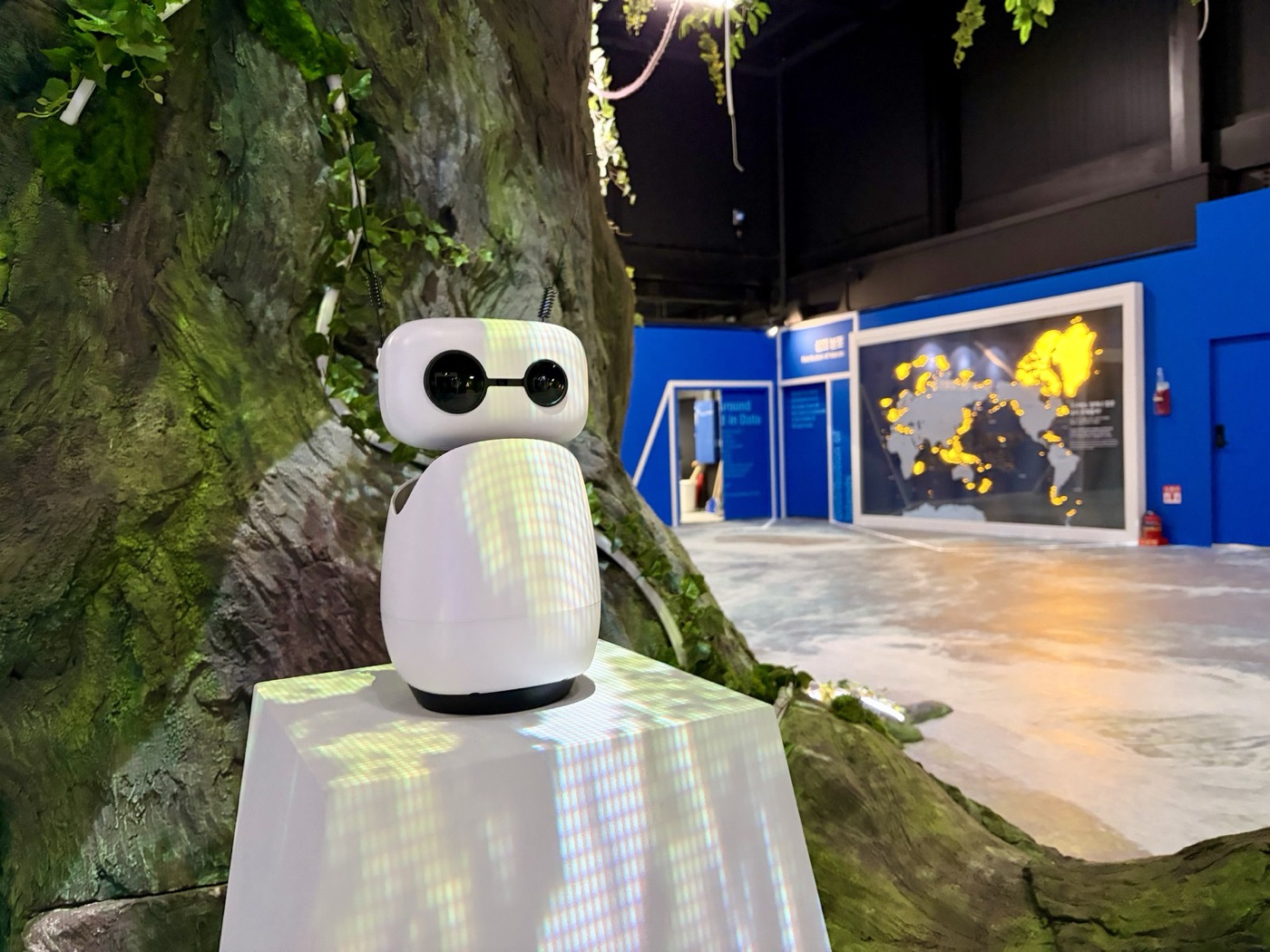
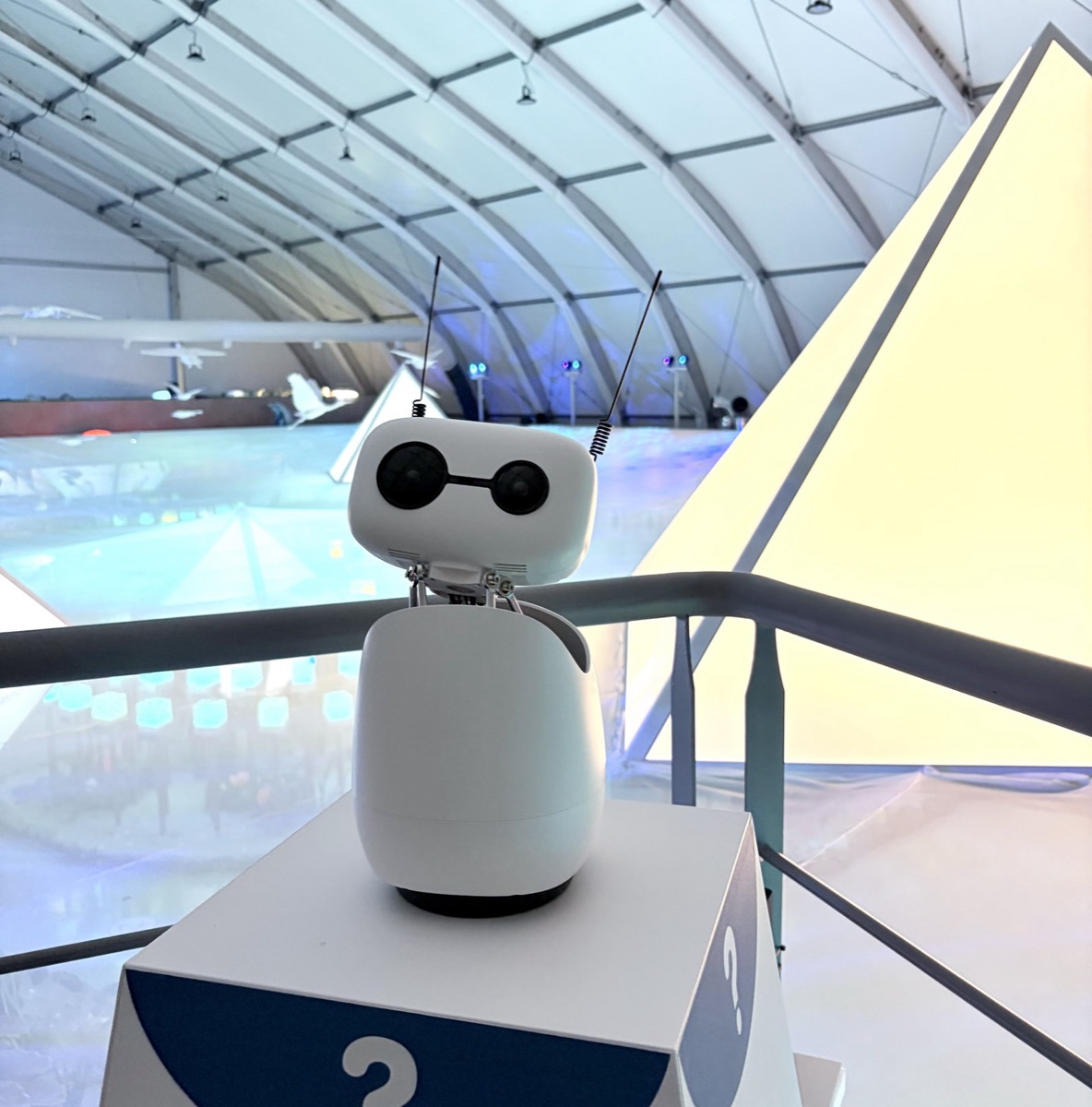
NEXBOT rents out and sets up AI guide robots for museums, exhibitions and events. They talk with visitors in many languages, explain the exhibits, sing and dance, and run unattended.
The Reachy Mini robot used with RBLOC can also be rented or bought from NEXBOT.
FAQ
I've never taught coding. Is that OK?
Yes. Activities 1 and 2 are nothing more than changing text and snapping blocks together. Try it yourself for 5 minutes first and you're ready.
Can younger students do it?
If they can read and write, they can do Activity 1. For younger grades, changing the lines in a sample and choosing expressions is plenty of fun.
Is the internet required?
Only once, to download the voice data the first time the app opens. After that it works without the internet.
Where does the students' information go?
Nowhere. No accounts are created, and the scripts they make exist only on that computer. The robot's speech is generated on the computer too. See Terms and privacy for details.
Do I have to pay?
No. It's free. You don't create an account either.
Does it work without a robot?
Yes. You can use every block with the on-screen robot. If you need a robot, you can rent or buy one at nexbot.me.
Which robot does it work with?
Reachy Mini Lite, the model that connects by USB.
Does it run on an Intel Mac?
No. It only runs on Apple silicon (M1 or later).
So far
Counted without names, device IDs or IP addresses.